Monday, 2 February 2015

How To Hide A ZIP File Inside An Image On Mac

You will need an image file, and all the files you want to hide zipped in a ZIP file. For this example, we will use a nyancat image named image.png to be our cover. The tip works with JPG and GIF files too.

Our ZIP file is named secret.zip. We will be hiding this in image.png. Here’s how

Prepare Image

First, make sure these files are on your Desktop. Open up Terminal. Type in the following command, then press Enter.
cd Desktop
Next, type in the command below and press Enter:

cat image.png secret.zip > image2.png
Once the command is used, a third file will be created on your Desktop called image2.png. This PNG file carries secret.zip within it.

Image Created
To prove this, notice that change in file size for image.png (12 KB) and image2.png. (20.3 MB). You can access this information by right-clicking on the file and clicking Get Info.
Get Info

The image2.png file behaves like a regular PNG file. If you try to open it, it wil pop up in your default photo viewer.

Image Preview

In order to unzip the hidden zip file, you will need to use Terminal. Use the following command to unzip the file:

unzip image2.png
The ZIP file within image2.png will then unzip its contents where the image is located.

Image Unzip

Keep Visiting

How to create partition without formatting window in Window 7

 Firstly  press "Windows+R" button and type “compmgmt.msc” .


2:-Now Choose “Disk Management” on left panel.


3:-Right click on any enough(regarding space) disk and choose “Shrink” option.


4:-Then enter the amount of new disk(as per required you) then press “ok”.

Keep Visiting

How To Download APK Files Directly From Google Play

Download APK Files
Usually, people get apps for their android device by downloading them from Google Play Store. The downloader gets the app installed for you, without bothering you with unnecessary details like the files required for installation etc. But what if you don’t have access to internet and you want an app installed on your phone? Surely you can’t do so without downloading stuff required for the installation. The solution to this problem is simple - just get the APK package of the desired app, and keep it beforehand for later when you need.


APK stands for Android Package. It’s actually a package which contains all the files necessary for installation. In other words, it’s a ‘standalone’ installer for your app which doesn’t require internet connectivity. You can get APK package of an android application from Google Play Store by simply adding an extension called ‘APK Downloader’ to your Google browser. Here we have a step by step procedure which will tell you how to add APK Downloader to your Google Chrome and subsequently, use it for getting APK packages
Once downloaded, the extension is to be added to your Google Chrome Extensions. To do so, follow these steps.
  • Go to the ‘Tools’ menu of your Chrome and select ‘Extensions’.
  • Locate the file you just downloaded (with extension ‘.crx’)
  • Now drag the file to your Extensions page.
  • For confirmation look for a small Play Store icon on your address bar

To configure the APK Downloader extension for your android device
  • Select the ‘options’ button on the menu
  • Enter the Gmail ID (the one required for Play Store)
  • Enter your password and device ID of your android device

For those of you who don’t know where to get device ID of your android device
  • Dial  “*#*#8255#*#*” from your android phone
If you are using an android tablet
  • Go to Google Play Store
  • Download ‘Device ID’
Device ID
Device ID will get your device ID for you.

Getting APK of an app is simple, just locate the app you want (on Play Store) and clicking on the APK icon on your address bar will get you your precious APK for that app. Another good thing about APK package is that it makes app sharing simple, now you can share an app with your friends by simply transferring the package to their device.

APK Icon
The APK and APK Downloader will make your life a lot easier if you face problems in installing your favorite apps due to connectivity issues or if you like to share your favorite apps with your friends.
Did you find this post useful? Did you have any problems? For any query, please ask in the comments section below. Cheers :)

Sunday, 1 February 2015

Top 6 White Hat Hackers In The World

Top 6 white hat hackers
Let’ begin with who is a white hacker? First of all, white hacker is good, conscientious and ethical hacker, who tries to save the balance of the universe by doing good works. White hats are very useful and it goes without saying they constantly compete with black hats. White hats hackers can be compared with cats, which catch mice, namely they look for defects of the systems. Besides, white hats are computer security guards, they test systems for the level of protection and moreover they improve their skills. Mainly, white hats don’t look for fame or money, they serve in society.

It is undeniable that sometimes black hat hackers became white hackers and prevent crimes, because they perfectly know what to do. So who are they main and most famous white hats of all times?


Before you move on further with this post you might like to read about Top 6 Black Hat Hackers.

1. Stephen Wozniak

Stephen Wozniak white hat hacker
Stephen Wozniak, The Great Woz, as many hackers call him, moreover,  he is “the second half” of Steve Jobs and Apple empire, became as an icon and inspiration for many people, who never lost interest in computer technology. What did he actually do? It is well-known today that he made free long-distance calls possible exploring so-called blue boxes, at the time, when high technology has made its first baby steps.  Nevertheless, one should accept that Woz is an independent developer and worked for the good of people. Currently, Stephen Wozniak is preaching charity and provides new technologies. One can truly say that Stephen Wozniak made a difference in this world and he deserves to be called as a white hat hacker.

2. Tim Berners-Lee 

Tim Berners-Lee white hat hacker
Tim Berners-Lee is well-known around the world as fonder of the web we use - World Wide Web. No wonder that this man invented his first computer using iron, as they say necessity is the mother of invention. Doubtless, his innovating had led him to becoming a president of the Open Data Institute in 2012.

3. Linus  Torvals 

Linus Torvals white hat hacker
Linus  Torvals created Linux operation system, which many of us use. At the beginning, this system was about to be called as Freax, using the combination of words “ freak” and “free”. Luckily, nowadays we know it as Linux.  As Linus himself once said that all he wanted to have fun doing something he really enjoys. This seems to confirm the idea that it is the great result of having fun!


4. Tsutomu Shimomura 

Tsutomu Shimomura  white hat hacker
Tsutomu Shimomura is also a very good example of a white hat hacker. The bottom line is he tracked down another hacker – Kevin Mitnick, who actually was a black hat hacker. However, later on he has entered the ranks of white hats. Tsutomu Shimomura caught Mitnick with flying colors hacking Mitnick’s phone. Good job catching “black knight”. Currently Shimomura is CEO and CTO of Neofocal System.


5. Richard Matthew Stallman 

Richard Matthew Stallman white hat hacker
Richard Matthew Stallman is known also by his initials – RMS. His policy is to give users freedom of usage software as well as education, freedom of voice and choice. He has developed Free software foundation, GNU project, which allows use computer and its devices for free
What is more, RMS is a founder of copyright concept. Among the list if his merits are 14 doctorates and professorships.


6. Johanna Rutkowska.

Johanna Rutkowska white hat hacker
When it goes about technology and computers, most of the time we mentioned men. Women weren’t pathfinders in this area, however, they have done enough to be mentioned among outstanding white hats. Thus, this smart lady could hide root kits in software and hardware and to make them invisible to a naked eye. One must admit the talent of he woman. To draw the conclusion, one can say that enumerated people have brought its own contribution in foundation and innovation of computer technologies. Until the world has such brainy “white knights”, its save.

Top 6 Websites To Learn Computer Programming Languages

Learn Computer Programming
Ever wanted to learn computer programming languages, but didn't know where to start? Well, those days are over. Today learning programming languages is not really a hard job. If you are a beginner and have aptitude to learn computer programming then you can accomplish this goal within a few months. Here are the top 6 websites, which are useful for learning programming.


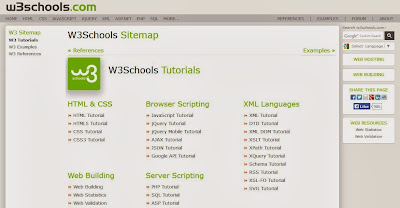
1. W3schools.com

If you are a beginner or intermediate programmer, then w3schools is an excellent website for learning programming. W3schools offer tutorials for a variety of web programming and scripting languages such as html, html5, css, asp, Ajax, JavaScript, php, jQuery etc. So, if you are into web development then w3schools would be a great learning resource.
Learn Computer Programming

2. Codeavengers.com:

If you want learn coding for making games, apps or websites using html/html5, css3, JavaScript python, but want an entertaining teaching resource. Then codeavengers.com is ideal choice for you. Codeavengers.com was designed by keeping difficulty for beginners in mind. It provides a fun and interactive learning environment that is effective for all age groups. Even if you are an intermediate programmer, you might find some great learning stuff there.

Learn Computer Programming

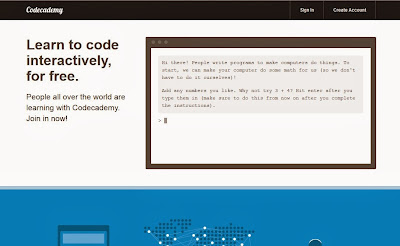
3. Codecademy.com

Codeacademy is another great website, for learning languages like JavaScript, HTML/CSS, PHP, Python, and Ruby. You can even learn how to use some popular web APIs in your website or app.  Codeacademy has a great modern learning system, which is based on user interaction. It has full-fledged programming courses for beginners. Again, this website is great for beginners and intermediate learners. But advanced programmers can also find some pretty useful stuff there.

Learn Computer Programming

4. tutorialspoint.com

Tutorialspoint has tutorials for a lot of web, high level and scripting languages that are commonly used today. You can find tutorials for any computer language that you have ever heard of (those that are currently in used). Apart from that, it also features a variety of tutorials for other fields such as DIP, OS, SEO, Telecom, DBMS, and frameworks etc.  Some commonly used languages that you can learn there are: Java, C++, PHP, Python, Ruby, C#, Perl, VB.Net, ios.

Learn Computer Programming

5. msdn.microsoft.com

Although, beginner programmers might find MSDN (Microsoft Developer Network) a tough learning resource, it is still the best resource you can get, if you want to master Microsoft oriented languages such as VB.Net, C# etc. MSDN has great tutorials for beginners, intermediate and advance programmers.
Learn Computer Programming

But as I stated earlier, beginners might not be initially comfortable with MDSN, as I has really a lot of resources that it would be a hard time for beginners to find what they are looking for. But if you get used to MSDN, then it is the ideal learning point for Microsoft oriented languages. You can get a lot of sample applications, tutorials and resources that are uploaded by Microsoft and MSDN community. Since it’s a developer’s network, you can even find development help from community members.

6. Lynda.com

You might already know about Lynda.com. Lynda offers easy to follow video tutorials. Lynda.com is an old and well established tutoring site, if you are looking for video tutorials to learn computer languages, then Lynda is your ideal choice. Apart from programming languages, Lynda also offers tutorials for a variety of other fields such as 3D modeling, CAD, Photography etc. Lynda.com is an old and well established tutoring site.

Learn Computer Programming
So the next time someone asks you about your computer skills, you know where to turn. I hope you will learn a lot from these websites. All the best :)

Keep Visiting

How To Remove All Your Google Web History

Remove entire Google Web History
As most of you already know, Google keeps a tab on pretty much everything you do on a Google site, provided that you signed in on any one of these websites. Everything you do is recorded, and can be used against you in the future. Search data can reveal particularly sensitive information about you, such as facts about your location, interests, age, religious views, and so on. You can, however, choose to not be so vulnerable, and can remove all of your Google web history to protect yourself from an unforeseen eventuality.


In this post, I'll show you how to remove your entire Google web history.

Before we begin, please note that any data you remove will be deleted permanently. Google keeps a lot of useful information that helps you find what you're looking for faster. It gives you quick access to webpages you've visited in the past, and even lets you know in search results which pages you've visited, and when. This information can be useful if you're a power user, and like to get things done quickly.
Google Web History

But if you still want, you can go ahead and erase your entire web history. You can also pick and choose individual items to remove, so that you won't lose everything.

Delete your Google Web History

Follow these steps to partially or completely.


  • Step 1: Visit your Google History page at https://www.google.com/history. Alternatively, you can click the gear icon  on the upper right corner of a search results page, and then go to Search history.
  • Step 2: Click on the gear  icon again, and then go to Settings.
Settings
  • Step 3: Click on the delete all link. You'll be prompted for a confirmation. Click on Delete all again, and your entire search history is gone!
  • Step 4 (optional): Click on the Turn off button on the Settings page to stop Google from storing your history again


If you don't want to delete your entire history, you can select individual items from the History main page, and delete them. This, by no means, implies that Google has nothing more to do with your data. They still keep some of your information on their servers for auditing and other such purposes. But at least your personal data is off the line now, and isn't susceptible to leaking out into the wrong hands.


Keep Visiting

10 Computer Hacks & Tricks

1. Learn How to Use the Command Line

The truth is that using the command line is not as exciting or easy as it seems like in Hollywood movies. However, learning how to use the command line might prove to be extremely helpful. Power users adore using the command line, because they can perform complicated tasks by simply pressing a few keystrokes.

There are a wide variety of shortcuts, but it takes too much time to present them all here. However, if you want to learn more about using the command line like a pro, check the following link: Become a Command Line Ninja With These Time Saving Shortcuts


2. Find Additional Uses for Programs you Already Have

Computer nerds will always think out of the box, especially when it comes to finding new uses for the tools and programs they already use. Most programs can be used for more purposes, in addition to their original one. For instance, the file-syncing program, Dropbox, can be used to monitor your home computer, download torrents or even print files from afar. You can also use Gmail to find out if someone has stolen your phone.

3. Understand When Too Much is Too Much

When your computer starts to work a little too slow, you need to find out the real cause behind this problem. Usually, one app will slow your system down, so you need to find it and close it as fast as possible.
The following tools should help you find the real cause and terminate it: Rainmeter (for Windows) and MenuMeter (for Mac).

4. Know the OS’s Hidden Features

Every operating system (OS) has its own tricks and features hidden under the hood. System tweakers such as OnyX for Mac and Ultimate Windown Tweaker are simply great for finding secret features. If you are a Windows user, you can learn how to hide secret data inside a file, cascade specific windows or undo an accidental file move.
As a Mac user, discover how to create search tokens when searching for specific files, manage the privacy settings of an app or automatically restart your computer when it freezes.

5. Learn How to Crack Passwords

By learning how to break into a computer you will certainly increase your self-esteem. Everyone knows how to create secure passwords, but only a legit computer hacker knows to get the data they want. This is also a good exercise, because you will learn how to protect from cyber criminals in the future.

Some of the worlds most famous hackers have been hired for government operations and international projects to defend against other cyber attackers. We don’t condone hacking, it does help though to be one step ahead of a cyber bully heading your way though.

computer nerd

6. Use the Scheduling Tasks

Sometimes it is better to stop performing all that system maintenance all by yourself. The built in task scheduler allows you to run any task you need, whether it is defragmentation, picture upload, reminders or even alarms.

7. Use the Keyboard More

A true computer geek knows all the basic keyboard shortcuts, such as “ctrl-C or ctrl-V”. Learn the most common shortcuts for Word, Gmail, Photoshop and other programs you use on a regular basis. After only a few months, you will be able to blow through text boxes and menus at unbelievable speeds with precision.

8. Discover New Operating Systems

If you really want to impress your friends, you should try to learn more about Windows, Mac and Linux.
Each OS has its own pros and cons that can be noticed with ease, so learning more about each system should not be such a daunting task. The cool thing is that there is a lot of software out there nowadays where it allows you to install another operating system on your computer so you can switch between each Operating System when you please.

9. Protect Your Data

Hide your precious info into a text file and hide it in a secret location on your computer.
Don’t forget to “Empty” your Recycle Bin or Trash on your computer once you have sent unwanted files or data there, that way it makes sure that nothing can be retrieved by any surprise guests you may have access your computer.

10. Tweak Your Hardware

With a bit of professional tweaking, you can now push your computer past its original limits. Installing Mac on non-Macs and over clocking your processors are not so hard to accomplish.
There are instructions out there to find out the details of your computers hardware, google search how to find your computer models information, note down the RAM and go down the road to your local computer hard ware store and buy bigger RAM sticks eg… 8GB, 16GB, 32GB etc… (Just make sure that each stick is the same make and model if you can for the best performance.
Jump on YouTube and learn how to Install RAM in your particular type of computer, this will increase your computers memory allowing your computer to run more efficiently.


All these cool simple tricks and hacks that can be learned from computer nerds are extremely useful, but require a little time and patience in the beginning.

Keep Visiting