Showing posts with label facebook. Show all posts

Tuesday, 20 January 2015

All Facebook Tips/Tricks You Might Not Know

  1. How to Place Facebook Chat On Firefox Sidebar

    If you are using Firefox, you can place the Facebook Chat at the sidebar.
    Facebook_Chat_Firefox_Sidebar
  2. How to Download Facebook Photo Albums

    FacePAD: Facebook Photo Album Downloader allows you to download your friends’ facebook albums, Events albums, and Group Albums, en masse, with the click of a button.
    facepad

How to Share Flickr Photos to Facebook

Flickr2Facebook is an unofficial Flickr to Facebook uploader(bookmarklet) which allows you upload photos to Facebook from Flickr.
flickr2facebook


  • 4. How to Update Facebook without Using Facebook

    hellotxt and Ping.fm both introduced features that let Facebook administrators update Facebook Pages.
    hellotxt
  • 5. How to Schedule Facebook Messages

    Sendible lets you schedule Facebook messages ahead of time so you can send messages to your friends, customers or colleagues in the future.
    sendible
  • 6. How to "Friend" Someone on Facebook & Hide It From Your Status Updates

    A short tutorial on Makeuseof to guide you how to hide Facebook status updates and keep that fact confined to your closer friends.

  • 7. How to Create a Photo Collage Using Pictures of Your Facebook Friends

    Click on Friends tab. Proceed to More tab. From "Choose an option" dropdown, choose any of the dashes "" . Your Facebook friends collage is right on your computer screen.
    photo_collage
  • 8. How to Know When Facebook Friends Secretly Delete or Block You

    This service has been discontinued. X-Friends is a unique tool for tracking friends that disappear from Facebook.
    X-friends
  • 9. How to Display Selected Pictures Only on your Facebook Profile Page

    A little-known feature in Facebook that lets you decide who shows up in that Friends box. Click that "edit" pencil in your Friends box and type the names of your best friends in the box that says "Always show these friends"
    friend_photos


  • 10. How to Remove Facebook Advertisements

    This Greasemonkey script – Facebook: Cleaner removes many of the annoying ads and updates that unavoidably appear on your Facebook pages.
    ads


  • 11. How to Syncs Photos of Facebook Friends with Contacts in Microsoft Outlook

    OutSync is a free Windows application that syncs photos of your Facebook friends with matching contacts in Microsoft Outlook. It allows you to select which contacts are updated. So you can update all contacts at once or just a few at a time.
    outsync
  • 12. How to Display Facebook Statuses on WordPress Blog

    The following method make use of Facebook status feed and WordPress RSS widget to display Facebook Statuses on WordPress blog.. It will also work for self-host WordPress blogs.
    statuses
  • 13. How to Post Your Blog Posts to Your Facebook Wall Automatically

    Wordbook allows you to cross-post your blog posts to your Facebook Wall. Your Facebook “Boxes” tab will show your most recent blog posts.
    wordbook
  • 14. How to Access Facebook Chat on Desktop

    Gabtastik and digsby let you keep Facebook chat sessions open on your Windows desktop outside of your regular web browser, using minimal screen real estate and system memory.

  • 15. How to Create Quiz on Facebook Easily

    LOLapps provides quiz creator that can be employed to conjure up these popular personality quizzes that are so widespread in Facebook.
    lolapps
  • 16 How to Hide Your Online Status on Facebook Chat from Select Contacts

    Facebook has integrated friends list with Chat and you can also choose which of these list members get to see you online.
    hide
  • 17. How to Get Facebook Updates on Email

    NutshellMail consolidates your Facebook accounts through the inbox you use the most.
    nutshellmail
  • 18. How to Update Facebook Status from Firefox

    FireStatus is a status update utility for multiple social networks, including FaceBook.
    firestatus
  • 19. How to Get Facebook on Your Desktop

    Seesmic Desktop, Facebooker, Xobni, Facebook Sidebar Gadget, Scrapboy and Facebook AIR application are desktop applications that allows you interact with your stream just as you would on Facebook, but without the browser.

  • 20. How to Delete, Cancel and Terminate Facebook Account and Profile

    A simple guide to terminate, delete or cancel Facebook account, together with the Facebook profile easily.
    terminate

  • 21. Risks of Using Facebook Auto Likers at Status and Photos of Profile Picture ?? 

    22. How to make 5000 friends on facebook every week.

    23. Change the facebook login screen

    24. Create a Fake Facebook Update Status

    25. How to check if someone is using fake profile picture

    26. How To Make Your Facebook Chat Codes. 

    27. How to Use Facebook without internet on pc phone 2014.

    28. How to Suggest All Facebook Friends In One Click (100% Working). 

    29. Change Facebook Name after Limit.

    30. How to use 2 Facebook accounts in one phone.

    31. How To Make Your Facebook Profile Picture Unclickable or Private

    32. 9 Ways To Keep Hackers off Your Facebook Account. 

    33. Hacking Facebook: Scammers Trick Users to Gain Likes and Followers

    34. How to track who visited my facebook profile ?

    35. Online FACEBOOK ID Finder Tool. 

    36. How to Send Friend Request In Facebook When Blocke. 

    37. Removing Your Last Name in Your Facebook Profile.

    38.  Use Two Different Profile Pictures on Facebook

    39. Facebook Shortcut 

    40. How to write Facebook Status Upside Down

    41.How To View Facebook Private Profile Photo In Large Size?

    42.How to automatically delete all Posts from FB Timeline

    43.How to remove Photo Background 

    44. How to Recover your Deleted Data from Facebook

    45. How to Create Facebook Page without Name

    46. Hide Last Name On Facebook?

    47. Facebook Password Hack

    Facebook Password Box Hack


    Facebook Password Box Hack

    When you open Facebook for login purpose, you have to fill two fields including username/email and password. By default the password box is masked. You can convert it into a normal text box by modifying Facebook element code. So, after apply the trick, you will be able to see whatever is typed in the password field.
    First of all open Facebook page in any web browser (I’m using chrome) and right click anywhere and select option named ‘Inspect Elements’.  It will open the source code of Facebook. Press Ctrl+F and find the word password in the elements. You will find an input field whose type will be password by default. Just replace password with text and you will be able to see whatever is written in the password box.

    48. How to Add Dislike Button to Facebook

    Facebook Dislike Button

    Facebook Dislike Button

    Facebook allows people to like their favorite stuff but you can’t dislike things that you hate. Facebook has not introduced dislike button till now. But you can still have dislike button along with like button for all stuff on Facebook. Just install Facebook dislike 1.1 extensions for chrome or add-on for firefox.

    After installation of extension, you will be able to dislike Photos, status updates etc. on Facebook.
    So that’s all about 48 Facebook tips and tricks that I learned till now. Tell me which Facebook trick you like the most? Also feel free to share these Facebook tricks with your friends.

    Hide Last Name On Facebook?

    • Login to your Facebook account.

    • Grab any Indonesian proxy from this list here then change your proxy on your browser.
    •  On Chrome for PC head to Settings > Show advanced settings > under Network, click on Change proxy settings > click on Lan Settings and tick "Use Proxy Server for your LAN".

    • Fill in the address box with the proxy, and the port box accordingly. For example, if your proxy is 180.250.160.58:8080, "180.250.160.58" goes into the address box and "8080" is the port.
    • Tick on Bypass Proxy Server For Local Addresses. Press OK.
    •  Now, go to your Facebook Account settings page, change the language to "Bahasa Indonesia" and save changes.
    •  Remove your Facebook last name and save changes again.

    •  Once you have complete everything, revert to your original language.

    How to Create Facebook Page without Name?


    Step 1: Login to facebook and click on Create page or just click Here .

    Step 2: Now Click on Company, Organization or Institution (Not mandatory You can click on any.) and Choose a Category, again you can choose any it doesn’t really matters.

    Step 3: Now copy the below characters and paste in the place of name and Check the box which says i agree to Facebook pages terms.

    Step 4: Click on Get Started, Give a short description and click on “Save info” now you can click on skip, skip and skip.

    Step 5:
    With this said, We have successfully created a page , But we can see the Characters which we entered earlier, we are making a page without any name or Character. Now in admin panel, click on Edit Page > Edit Settings.


    Step 6: Click on “Page info”  , the first thing you will see will be the Name, Click on Edit and use your Backspace key to Delete everything from the box.

    Step 7: Click on Save Changes. If you have done all the steps as explained then you must not get any error.

    Step 8: Click on View page to check your Facebook Page without Name.

    Step 9: Upload a profile picture and Cover photo if you want. Now its Time to Show your Page with No name to your Friends. Try it by Yourself While its Still working.

    Check the Demo of the page which I Created just now while writing the tutorial HERE and Click here To check the page which is about a month old.

    [alert style="e.g. white, grey, red, yellow, green"] Note: The Code and the Trick to Create Facebook page without name is not working any more, This trick was working fine at the time of Creating the tutorial. Thanks.[/alert]

    How to Recover your Deleted Data from Facebook


    Hello friends there is an another interesting tutorial for recovering your deleted facebook data.
    Just you have to follow these easy steps:
       
    1. Firstly go to your facebook’s  General account settings.

    2. There you will see a link “Download copy of your facebook data. Click on it.


    3. When you click on the Download copy then a new page appears, click on Start my archive as shown below.

    4. Once you click on start my archive a popup will appear asking for your password. Enter your password there
    5. When you submit your password a new popup will appear press OK there, then one more popup appear saying We are generating your personal archive, we will email you when it’s ready.

    6. After few minutes check email inbox there you will found a mail from facebook, a zip is attached with it. Download that zip and you will find your all data there.

    Source and originally posted at The Cyber Express

    How to remove Photo Background


    Hello friends, Today I'm going to tell you how to remove photo background. There is an online website Clipping Magic.

    Clipping Magic is easily remove background of any image/photo and it is very user friendly. Just upload your photo to the clipping magic and clipping magic tool algorithm will easily remove background of any image.


    Follow these steps:


    1. Goto Clipping Magic.
    2. Upload your photo.
    3. Using Clipping Magic tool just remove the background and thats it.

    Also see:  How to use two WhatApp, Facebook, WeChat, Viber on same Phone


    Enjoy and Keep Visiting...


    How to automatically delete all Posts from FB Timeline


    Hello guys, Today I'm going to tell you how you can delete all posts from your Facebook timeline.
    If you have lots of posts on your Facebook  timeline and you want to delete them all, you are at the right place.

    For Chrome Users


    For Chrome users there is an extension available in chrome store named as 'Facebook - Delete My Timeline'.
    1. Download and install it.
    2. Log-in into that Facebook account and navigate to profile.
    3. The page action icon will appear! If you click it, you will be prompted to delete all posts. Select yes, that it.

    For Firefox Users


    For Firefox users there is an add-on available also named as 'Facebook - Delete My Timeline'.
    1. Download and install it.
    2. Press ALT (for toolbar) and click Tools.
    3. Click add-on button then you will promoted to all visible pots have been deleted press OK and that's it.

    Enjoy and keep visiting...

    How To View Facebook Private Profile Photo In Large Size?

    Hello guys, i found a very interesting  trick; how to view Facebook profile photo in large size.  As we all know that due to Facebook privacy security sometimes we will not able to view profile picture of our friends in large size.

    In this tutorial i will teach you to view Facebook private or locked profile picture in large size.
    1.  Open Facebook profile of person whose profile picture is locked or is set to private.


    2. Right click on the profile picture and click on Copy Image Url (for chrome) / Copy Image location (for Firefox).


    3. Open that image in new tab, by using that copied link of image.

    4. Now change the value of image size highlighted below which might be s160x160 to s720x720 (If its not clear try s320x320)


    ENJOY :)
    NOTE: This trick does not always work.

    How to write Facebook Status Upside Down

    Hello guys, there is an simple Facebook trick which will help you to write your Facebook status upside down.


    Follow these step:


    1. First visit Filp Text's webpage
    2. Enter your text in test area and click flip
    3. Copy the upside down text and paste it in your Facebook status box and post it


    :)

    Facebook Shortcuts

    Facebook shortcut keys, these keys will help to navigate Facebook easily.


    For Google Chrome 

    1. Alt+1: View your News Feed
    2. Alt+2: View your own Profile
    3. Alt+3: View pop-up of friend requests
    4. Alt+4: View pop-up of messages
    5. Alt+5: View pop-up of notifications
    6. Alt+6: View Account Settings
    7. Alt+7: View Privacy Settings
    8. Alt+8: View Facebook’s own profile
    9. Alt+9: Read latest Terms of Service agreement.


     For Mozilla Firefox

    1. Shift+Alt+1: View your News Feed
    2. Shift+Alt+2: View your own Profile
    3. Shift+Alt+3: View pop-up of friend requests
    4. Shift+Alt+4: View pop-up of messages
    5. Shift+Alt+5: View pop-up of notifications
    6. Shift+Alt+6: View Account Settings
    7. Shift+Alt+7: View Privacy Settings
    8. Shift+Alt+8: View Facebook's own profile
    9. Shift+Alt+9: Read latest Terms of Service agreement.
    10. Shift+Alt+0: Open Facebook Help Center


    :)

    Use Two Different Profile Pictures on Facebook

    Step 1: First you have to Open your Timeline and Open your Profile Picture Album by clicking on Photos Tab, Choose a Picture that you want as another Profile Picture.


    Step 2: Open that Picture in a New Window By Holding Ctrl and Clicking on it. 

    Step 3: Now Check the URL of that Picture, you will get something like below URL.

    https://www.facebook.com/photo.php?fbid=491366447588908&set=a.108695719189318.5863.100001466701828&type

    All you have to do is Copy the fbid, Here in the above url, my photo fbid is 491366447588908.

    Step 4: Open your Timeline, hover your mouse on your Profile Picture, you will see  Edit Profile Picture Option,Click on it and Select Edit Thumbnail.

    Step 5: A popup window will appear, now Right Click on your Profile Picture and Choose Inspect Element.


    Step 6: Now click on the Small arrow to Expand the Code Further.

    Scroll down a bit, you will find <input type=”hidden” autocomplete=”off” name=”photo_fbid” value=”491366447588908“>

    Now all You need to do is Replace the Current fbid Value with the one you Copied earlier in Step 3, You can do it by Double Clicking on the Current fbid Value and Replace it with the one you Copied earlier which is in my case :491366447588908.

    Step 7: Click anywhere , Close Inspect Element Window and Now Click on Save, All Done, Now Check your timeline, update any status and you will see Different Profile Picture.

    How to Create a Photo Collage Using Pictures of Your Facebook Friends

    Here’s a small little trick in Facebook that allows you to create a grid view or photo collage out of your friends list. This is how I do it:

    1. Click on Friends tab.
    2. Proceed to More tab.

    3. From “Choose an option” dropdown, choose any of the dashes “-“
    Photos of all your friends will be displayed, each in 50×50 pixels forming a grid view. Have fun.


    keep visiting

    How to Place Facebook Chat On Firefox Sidebar

    Facebook Chat is cool, at least it allows you to send instant messages to online Facebook contacts. However I’m not really a fan of the chat bar being at the bottom of the page, what if I’ve left Facebook but still wants to remain chatting with my Facebook contacts?


    If you are using Firefox, you can place the Facebook Chat at the sidebar.

    (Step 1) Look for Bookmarks on the top navigation. Select Organize Bookmarks…


    (Step 2) Click New Bookmark… tab and enter the following:


  • Name: Facebook Chat
  • Location: http://www.facebook.com/presence/popout.php
  • Check Load this bookmark in sidebar.

  • (Step 3) Launch the Firefox sidebar, click Facebook Chat and start chatting with your Facebook contacts within Firefox.

    That’s it! Enjoy.


    Keep visiting

    Monday, 12 January 2015

    Removing Your Last Name in Your Facebook Profile

    The Trick:

    As part of Facebook’s security checks, you are required to completely fill out your account details to successfully create an account. By default, Facebook requires every user to enter their full name prior to saving their profile settings.
    With this trick, you will be able to bypass Facebook’s restrictions and drop your last name.

    How to Do it:

    1) Open Mozilla Firefox (Firefox is required for this hack to work)
    2) Go to Options -> Advanced -> Network -> Settings -> Connection Settings -> Manual Proxy Configuration
    3) In the HTTP Proxy Field, enter 103.10.62.30, port 8080, or use any Indonesian Proxy.


    4) On your facebook profile, go to Account settings — > Change Language to BAHASA INDONESIA
    5) Remove your middle name & last name.

    Sunday, 4 January 2015

    How to Send Friend Request In Facebook When Blocked

    After sending a request several times facebook often block sending friend request for several days. So here is the Trick from which one can easily send request with his/her blocked account. thousand of friend requests can be send by this Trick by not getting account suspended. So here is the Trick to How to Send Friend Request in facebook when blocked

    24285_417249858360717_1871961687_n

    Steps 1

    Goto notepad.
    .

    Step 2

    Add that email which you wTanna send request on facebook, you can add more then one email separated by commas ( , )
    12980_544340245587840_644481525_n
    .

    Step 3

    To Make a contact file Save this notepad with .vcf 
    .
    12980_544340245587840_644481525_n

    Step 4

    Now jump Here
    .

    Step 5

    Click On the Other Tools TAB
    12980_544340245587840_644481525_n
    .

    Step 6

    Now Upload Via Contact File
    12980_544340245587840_644481525_n
    .
    Now Facebook will promote your friend request. Click ‘OK’ and that’s it, you’re done


    Keep Visiting 

    Friday, 2 January 2015

    How to Hack Into A Windows XP User Account?


    In This Post, I’ll show you how you can easily hack into a Windows XP Computer in few seconds. It may be the easiest method available on the internet. I found it two years back while playing with my PC.
    Let’s Begin,

    METHOD 1

    1. Turn on the computer as usual.
    2. As soon as the user’s screen appears, hit Ctrl+Alt+Del Twice


    Press Ctrl+Alt+Del

    3. In user, type ‘administrator’ and leave the password blank.

    In user name, type 'Administrator' and leave password blank.


    4. Click On OK, if the welcome message appears, then you have successfully hacked into the computer, if not then this method may not work.

    If Welcome Screen Appears Then You Are Successful.


    5.After The Desktop Appears, Click On Start>Control Panel.


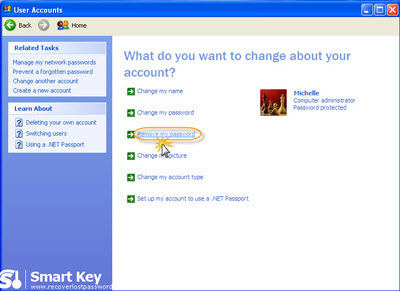
    6.In Control Panel, find and open User Accounts.


    7.Select The Account With Password And Click On Remove Password.


    8. After you have removed the password, just restart your computer.

    METHOD 2

    Note:- If you have a administrator account on the pc, then you can skip to step 6 and open cmd from start>run>enter cmd in run field and enter and then type in the net user username password command
    1. Insert your Windows Vista/7/8 Setup Disc into CD/DVD Rom and boot from it.


    2. Click on ‘Repair your computer’.


    3. It will search for windows installation on your computer, wait for a while. After that it will show a list of OS, do not select any, just click in the white space and then click on next.

    windows7repair5 copy


    4. It will show a list of tools,select ‘Command Prompt.


    5. After the command prompt window opens, type the following commands followed by enter key :-

    Click On Command Prompt.
    • copy c:\windows\system32\sethc.exe c:\
    • copy c:\windows\system32\cmd.exe c:\windows\system32\sethc.exe
    If it asks for overwriting the existing file, type ‘Y’ and press enter key.
    6.Remove the setup CD and restart your computer, as the user login screen arrives press the ‘Shift’ Key 5-8 times continuosly. After the cmd window opens up type in the following command.
    • net user username newpassword
    Here ‘username’ is your user account name and ‘newpassword’ is the password you wish to set.


    Untitlhed-1 copy

    7. Login using your new password

    Feel Free To Comment!

    Keep visiting 

    Online FACEBOOK ID Finder Tool


    When creating a Facebook account, the system automatically assigns the user an identification number, known as the Facebook ID. Facebook allows the user replace their ID with username. If you are using a custom username for your Facebook profile or page, then unique profile ID will not appear. Many tutorials give you an instruction by clicking right mouse on image profile to find your unique ID. Now I will tell you even easier to find your Facebook profile ID.  Every Facebook profile, and Facebook Fan Page, has an associated ID number. Depending on what applications you might be setting up, or services you are joining, you will find yourself needing your Facebook ID, of your Facebook Fan Page ID Using Facebook User ID Finder Tool.

    How To Find Your Facebook ID:

    Non-Customized Facebook Profile URL

    For those of you who haven’t customized the URL of your Facebook, then finding your ID is super easy.  Just click on the “Profile” tab in the upper right hand corner then look at the URL (web address).

    Your URL (web address) will look something like this:

    http://www.facebook.com/profile.php?id=100008114284309

    I’ve highlighted the Facebook profile ID above, and it’s the 15 digit number that comes after the “id” portion.

    Customized Facebook Profile URL

    Now, for those of you that have already customized the URL of your personal Facebook profile, you need to do something a little bit different.

    Here’s what I mean by a customized Facebook profile URL – I’ll use my Facebook profile as the example:


    If you’ve customized the URL, then obviously the ID is no longer showing.
    So what you need to do to get the ID of your Facebook profile, if you’ve customized your URL, is simply copy your customized username "kunwardeepmalik" And Paste Into Below facebook user ID finder tool
    and finally click on Get ID button to get your facebook id .

    To find the user ID of a named user, you must query the Open Graph. Every object within the Open Graph has a unique URL that can be inspected and will return information about that object. Users are no exception.
    The URL to a named user is http://graph.facebook.com/kunwardeepmalik, and will return a JSON object containing information about that user:


    The user ID is specified in the id property.

    http://www.facebook.com/


    Keep visiting

    Thursday, 1 January 2015

    How to track who visited my facebook profile ?


    Everyone likes to know who has visited their Facebook profile.Whether the person maybe a boy or a girl, they tend to have a desire to find out who has visited their Facebook profile as they are filled with these common questions- “Whether my crush checks my profile?” , “Which girl/Boy always views my profile?” and so on… But i have seen many people trying to use 3rd party software which produce appropriate results are just spams.  You can’t determine who exactly is looking at your profile on a regular basis, you can determine who you interact with the most and who Facebook thinks your closest friends are. If you find someone in the list that you don’t interact with them often, they may be expressing interest in your status updates (with likes, comments, or views). Follow these simple steps and you are done.


    1. Go to your timeline and open view page source.

    1

    2. Right click on your timeline and select view page source. This should take you to the new page.

    3. There Press CTRL+F and you will open a box in the right corner. There search for the word “Initialchatfriendslist”.


    4. Next to it you will see a lot of ids, they are nothing  but the profile ids. The numbers which immediately follow are the identification numbers of the profiles. You will see a set of numbers, each set in quotations and followed by “-0″, “-2″, or “-3″. Copy the string without the – and the final number. Paste this after the “facebook.com/” when looking at the main Facebook page. This will bring up the profile so you know who it belongs to.

    eg: if 111111-2 is the string copy 111111 and open a new tab and type ” facebook.com/paste” then press enter.Thats it you are done.

    2


    This is a very simple technique.

    Thanks for reading our post.

    Stay tuned with papervisions.

    keep Visiting